
Screensaver Guide
Complete guide on how to use FlipCloc Screensaver
Quick Guide
- 1
Purchase the Windows License to get access to the FlipCloc.scr file
- 2
Right click and install the .scr file
- 3
Create a style you like using the web, desktop app, or windows screensaver settings and save as a preset
- 4
Tap the set as screensaver on your desktop app or Windows screensaver settings
- 5
Your screensaver is ready to go!
The Ultimate Passive Aesthetic
Transform your computer into a functional piece of art when it's not in use. FlipCloc makes your space aesthetic while matching your style.
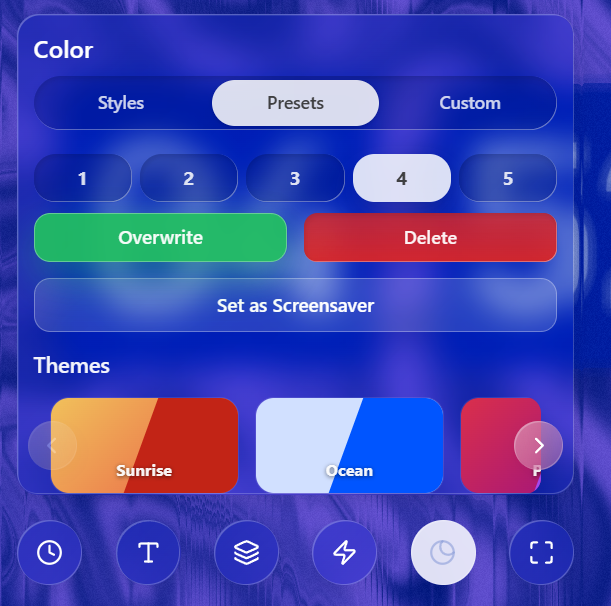
Configure your screensaver directly from the Windows personalization menu.
Installation Instructions
- Download: Get the Screensaver file from your license dashboard or the download page.
- Install: Right-click the file and select "Install".
- Configure: In Windows Screensaver settings or the FlipCloc app, select your preset and tap on set as screensaver to use that style. The chose style will load automatically when the screensaver loads or you can choose to preview it from Windows screensaver settings.
Uninstall FlipCloc
If you'd like to stop using FlipCloc as a screensaver, simply delete the FlipCloc.scr file from your computer and windows will stop using it as your screensaver. Very simple, leaves no traces.
New to FlipCloc? Check out our complete guide to purchasing a license.