
Clock Modes Guide
Complete guide on how to use FlipCloc Clock Modes
Quick Guide
- 1
Switch between Clock, Pomodoro, and Stopwatch
- 2
Use the clock menu slider to switch modes
- 3
Keyboard shortcuts (C, P, S) for instant mode changes
- 4
Use standard timer by zeroing out pomodoro break values
Versatility in Time
FlipCloc is more than just a beautiful clock. It is a thoughtfully designed productivity tool designed to adapt to your current needs. Whether you're tracking your workday, timing a sprint, or just watching the minutes fly by, switching modes is easy
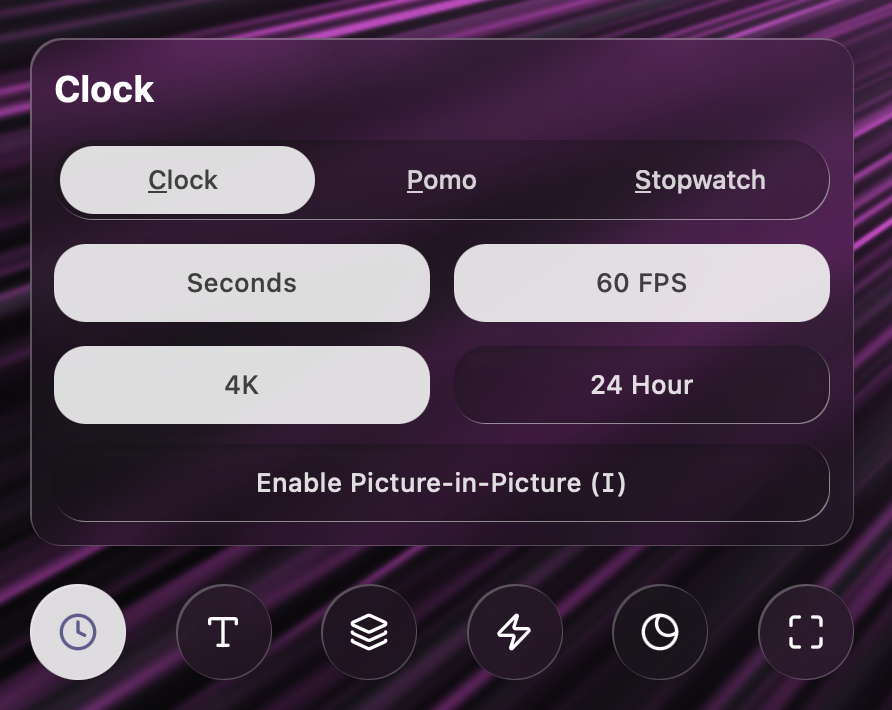
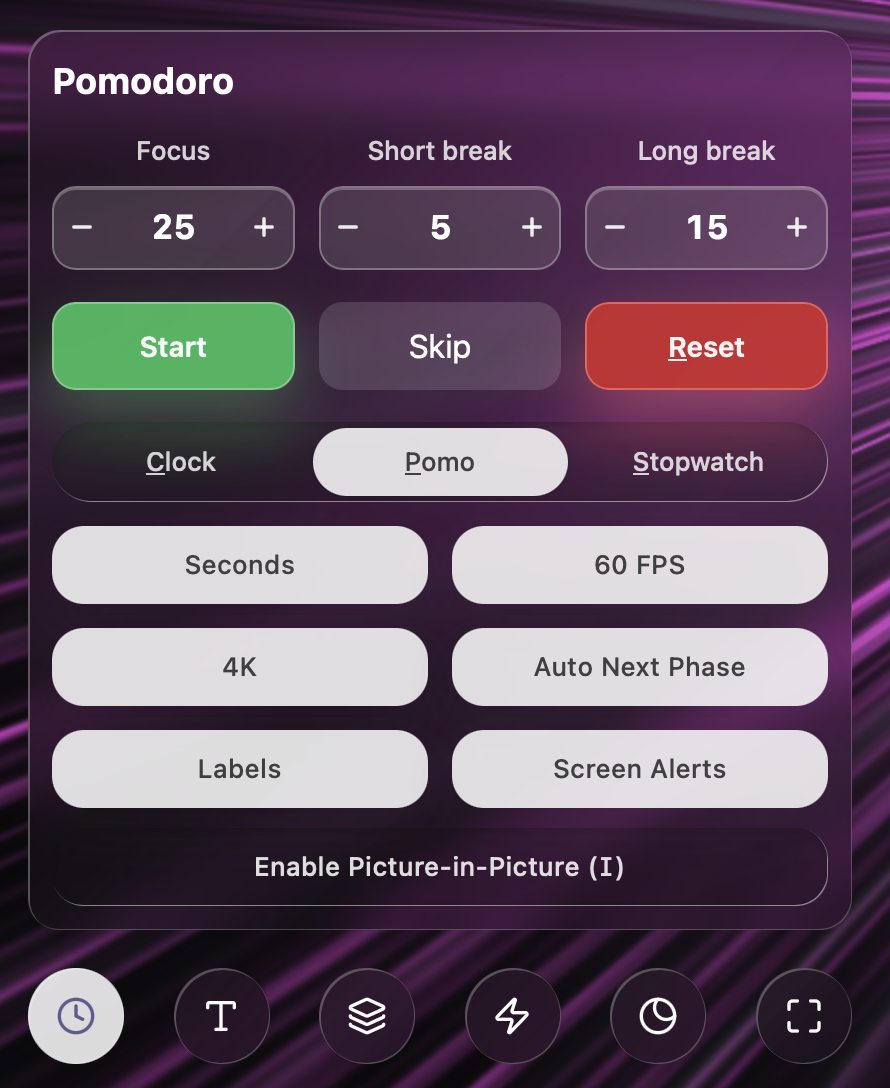
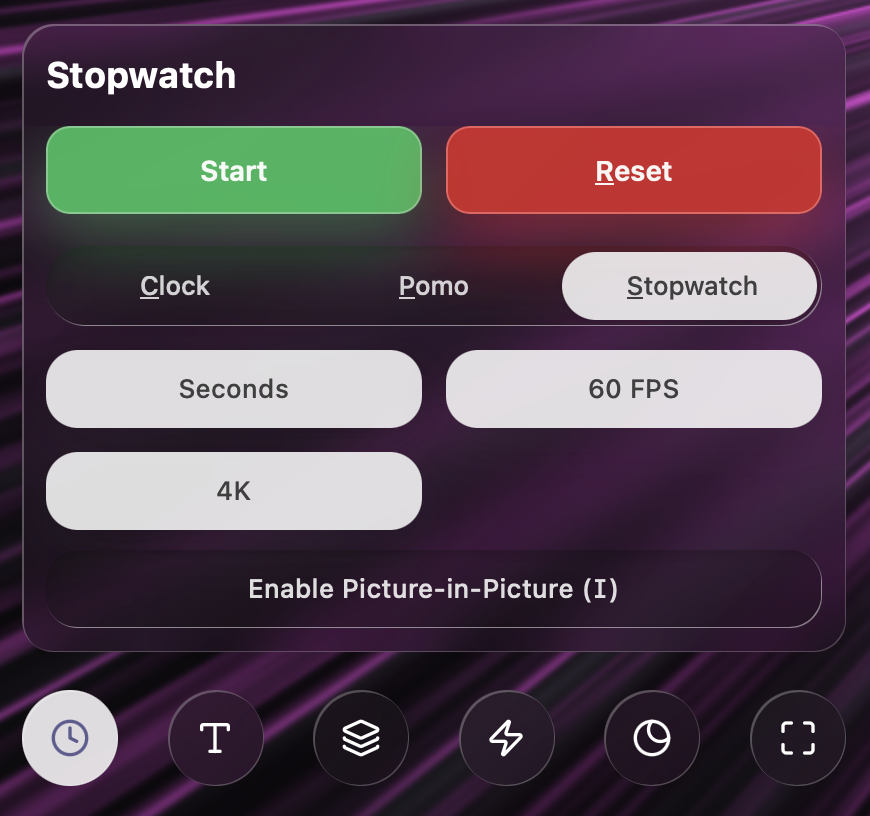
1. Clock Mode
The default mode. Clock displays the local time with high-fidelity mechanical flip animations. Perfect for everyday use and as a screensaver replacement. Learn more in the Clock guide
2. Pomodoro Mode
A dedicated productivity timer based on the Pomodoro Technique. Switch to this mode to manage focused work sessions and restorative breaks. You can customize the durations to fit your personal flow, or zero out breaks to use as a standard timer. Pomodoro values can be saved in presets for quick access to your most used sessions. Learn more in the Pomodoro guide
3. Stopwatch Mode
A precise count-up timer. Useful for tracking task duration, cooking, or timing physical exercises. The flip animation provides clear, high-contrast feedback on elapsed time. Learn more in the Stopwatch guide
How to Switch
- Navigation Slider: The first menu shows clock settings. Open it and tap on the slider on top to change modes
- Keyboard Shortcuts: Use C for Clock, P for Pomodoro, and S for Stopwatch