
Performance Guide
Complete guide on how to use FlipCloc Performance
Quick Guide
- 1
FlipCloc is well optimized to run smoothly on modern devices, however if you want to reduce resource usage there are a few options
- 2
Disable Seconds to reduce the frequency of flip animations
- 3
Lower the Frame Rate (FPS) to reduce GPU and battery usage
- 4
Use HD resolution instead of 4K for smoother performance
- 5
Turn off Continuous animation to stop background animation running continuously in the background
- 6
With all the above settings FlipCloc runs at almost zero system resource usage keeping the GPU close to idle
Performance Guide
FlipCloc uses your graphics card to render beautiful, realistic flip animations. While it's designed to be efficient, you can fine-tune the settings to reduce system usage or extend battery life on laptops and mobile devices
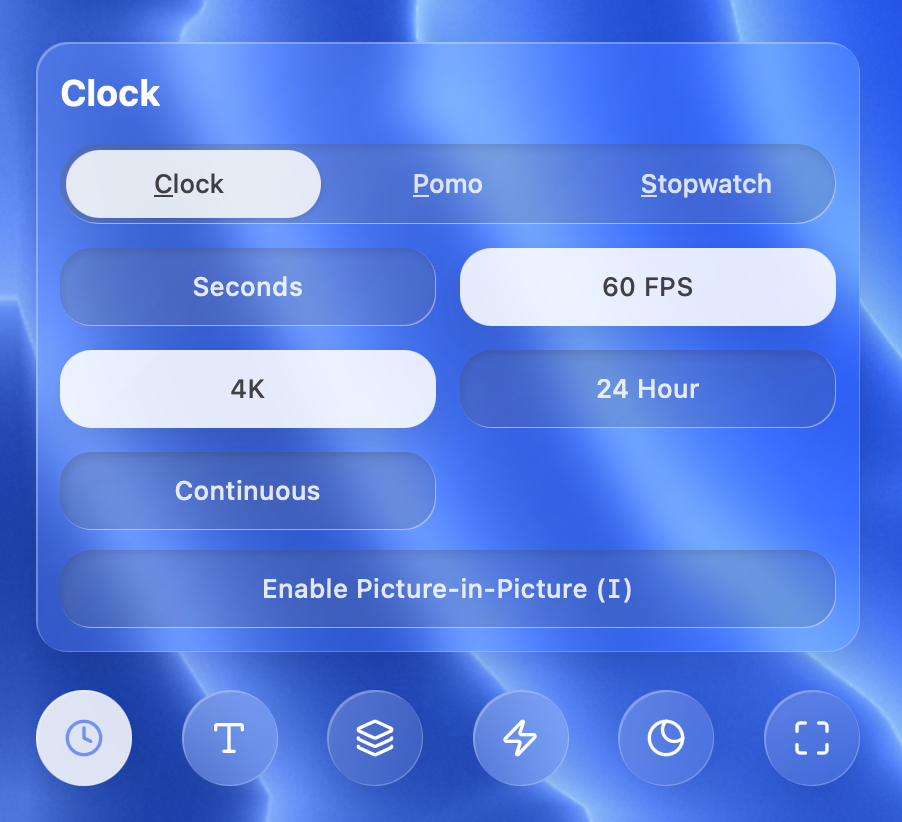
Fine-tune these settings to optimize FlipCloc for your hardware
How to Improve Performance
If you notice high CPU/GPU usage or want to save battery, follow these steps to optimize FlipCloc:
- Lower the Frame Rate: Switch from 60 FPS to 30 FPS. This reduces the load on your graphics processor without sacrificing the core experience
- Reduce Resolution: If you are on a high-density display, switching from 4K to HD will make the clock much easier to render
- Disable Seconds: Turning off the seconds flap reduces the frequency of animations from once per second to once per minute, drastically saving system resources. This setting with the continuous mode off has the biggest impact cahanging animation from every second to every minute
- Turn off Continuous Animation: This setting controls whether the background animates continuously Disabling it ensures the clock only animates on every minute tick. The setting only shows up when seconds are disabled
Pro Tip: Using 30 FPS and HD resolution combined with Disabled Seconds & Continuous Mode is the best way to run FlipCloc at near zero system resource usage
Presets & Syncing
All the settings sync and save to Presets. as well. This allows you to have a "Power Saving" mode that you can switch to instantly whenever you're on the go