Stopwatch Guide
Complete guide on how to use FlipCloc Stopwatch
Quick Guide
- 1
Track a session for how long a task takes. Track the time you are away from your PC. Track cooking time
- 2
Need to track duration for any task? Switch to Stopwatch mode to count up with precision, perfect for timing tasks
- 3
Press S to quickly jump into Stopwatch mode
Precision Timing
The Stopwatch mode is perfect for tracking how long a specific task takes, or for any activity that requires counting up. It maintains the same beautiful flip animation for every second
Explore the rich customization options and settings in FlipCloc
How to Configure
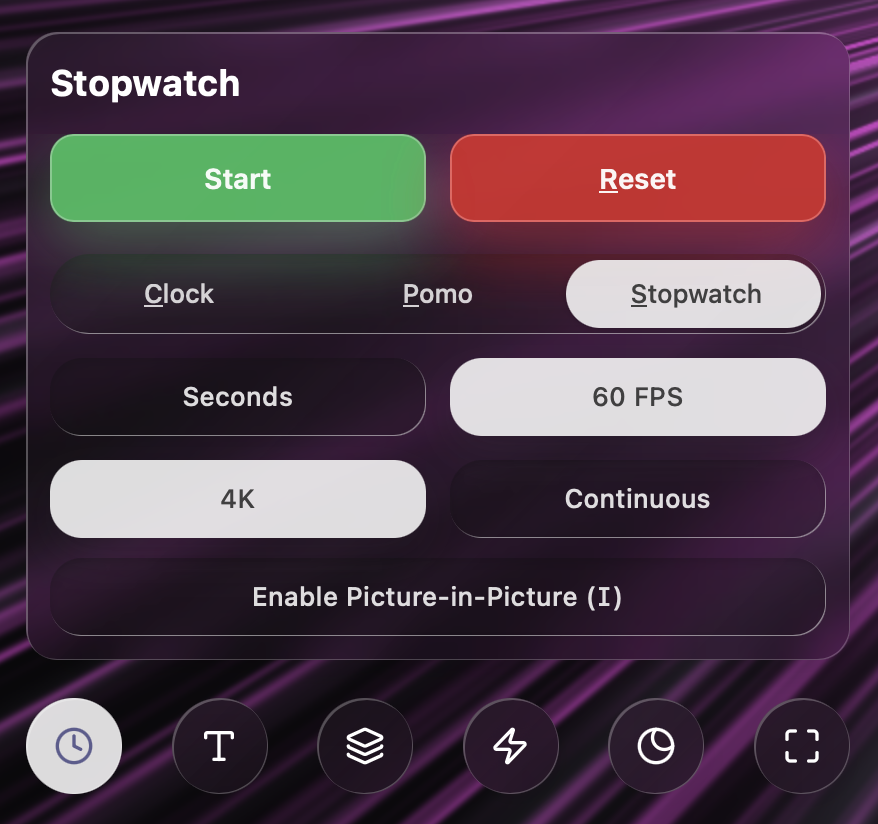
FlipCloc offers a suite of settings to tailor your tracking experience. Fine tune how you like your Stopwatch
- Control the flow: Use the Start, Stop, (Spacebar) or Reset (R) buttons to manage your timing session
- Toggling Modes: Use the first slider to move between Clock, Pomodoro / Timer , and Stopwatch modes instantly
- Seconds: Toggle seconds to show or hide the seconds flap. Disabling seconds also unlocks the Continuous setting explained below
- 60 FPS: Control the refresh rate of the clock
- 4K: Toggles the resolution at which FlipCloc runs
- Continuous: This setting only appears when seconds are disabled. This controls whether background animates continuously or only for a small duration at every minute
- Picture-in-Picture: Use the Enable Picture-in-Picture button (or press I) to float a small version of FlipCloc over other applications
Pro Tip: Underlined letters (like Clock or Pomo) or letters in brackets (like (I) for Picture-in-Picture) indicate keyboard shortcuts. You can trigger these actions directly from your keyboard for lightning-fast control. Check out the full shortcut guide for a complete list
Use Cases
- Work Hours: Track how much time you spend on a specific client or project
- Cooking: Keep an eye on your kitchen tasks with a large, visible display
- Habit Tracking: Time your meditation, reading, or workout sessions
- Multi-Window Tracking: Keep two clocks side by side to track work hours on one and rest hours on another
Presets & Syncing
All settings can be saved to your custom presets after purchasing a plan. Your settings are saved to your profile and automatically synced across all your devices, so your favorite clock look follows you everywhere