
Clock Guide
Complete guide on how to use FlipCloc Clock
Quick Guide
- 1
The clock is the default mode when you open FlipCloc and displays your current local time
- 2
Set if you'd like to see the seconds
- 3
Choose between a 12 or 24 hour clock
- 4
Watch time flip by beautifully!
Classic Timekeeping
The Clock mode is the heart of FlipCloc. It's designed to be lean, beautiful, and highly customizable. It's not just a clock; it's a statement piece for your desktop
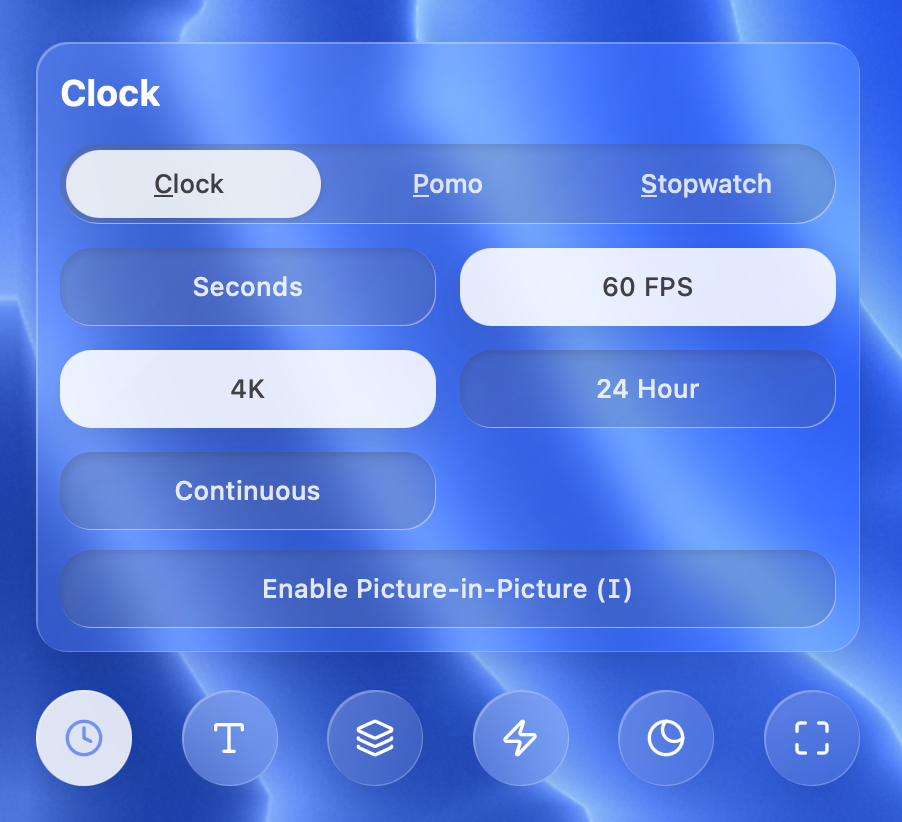
Explore the rich customization options and settings in FlipCloc
Customization & Settings
FlipCloc offers a suite of settings to tailor your experience. The first menu controls clock settings. Fine tune how you like your clock
- Toggling Modes: Use the first slider to move between Clock, Pomodoro / Timer , and Stopwatch modes instantly
- Seconds: Toggle seconds to show or hide the seconds flap. Disabling seconds also unlocks the Continuous setting explained below
- 60 FPS: Control the refresh rate of the clock
- 4K: Toggles the resolution at which FlipCloc runs
- 24 Hour Mode: Switch between the 12 and 24 hour clocks
- Continuous: This setting only appears when seconds are disabled. FlipCloc animates the background every minute tick once seconds are disabled. Toggle continuous mode If you'd like to animate the background every second again
- Picture-in-Picture: Use the Enable Picture-in-Picture button (or press I) to float a small version of FlipCloc over other applications
- Performance Improvements, Battery Improvements, or Reduce System Usage: FlipCloc uses your graphics card to render the beautiful flip clock. Disable seconds, disable continuous mode, and use the 30FPS, HD option for better performance. Running animations continuously requires more GPU power than animating every minute
Pro Tip: Underlined letters (like Clock or Pomo) or letters in brackets (like (I) for Picture-in-Picture) indicate keyboard shortcuts. You can trigger these actions directly from your keyboard for lightning-fast control. Check out the full shortcut guide for a complete list
Presets & Syncing
All settings can be saved to your custom presets after purchasing a plan. Your settings are saved to your profile and automatically synced across all your devices, so your favorite clock look follows you everywhere