
Overlay Effects Guide
Complete guide on how to use FlipCloc Overlay Effects
Quick Guide
- 1
Apply texture filters like Frost, Fluted Glass, Rain, or Ocean
- 2
Overlay Effects trasnform the background or background + clock together
- 3
Create unique styles by mixing overlay effects and changing their values
Atmospheric Layers
Overlay effects allow you to add a final layer of texture and atmosphere to your FlipCloc. These effects sit on top of your chosen background and digits, creating depth and a "through the glass" feeling
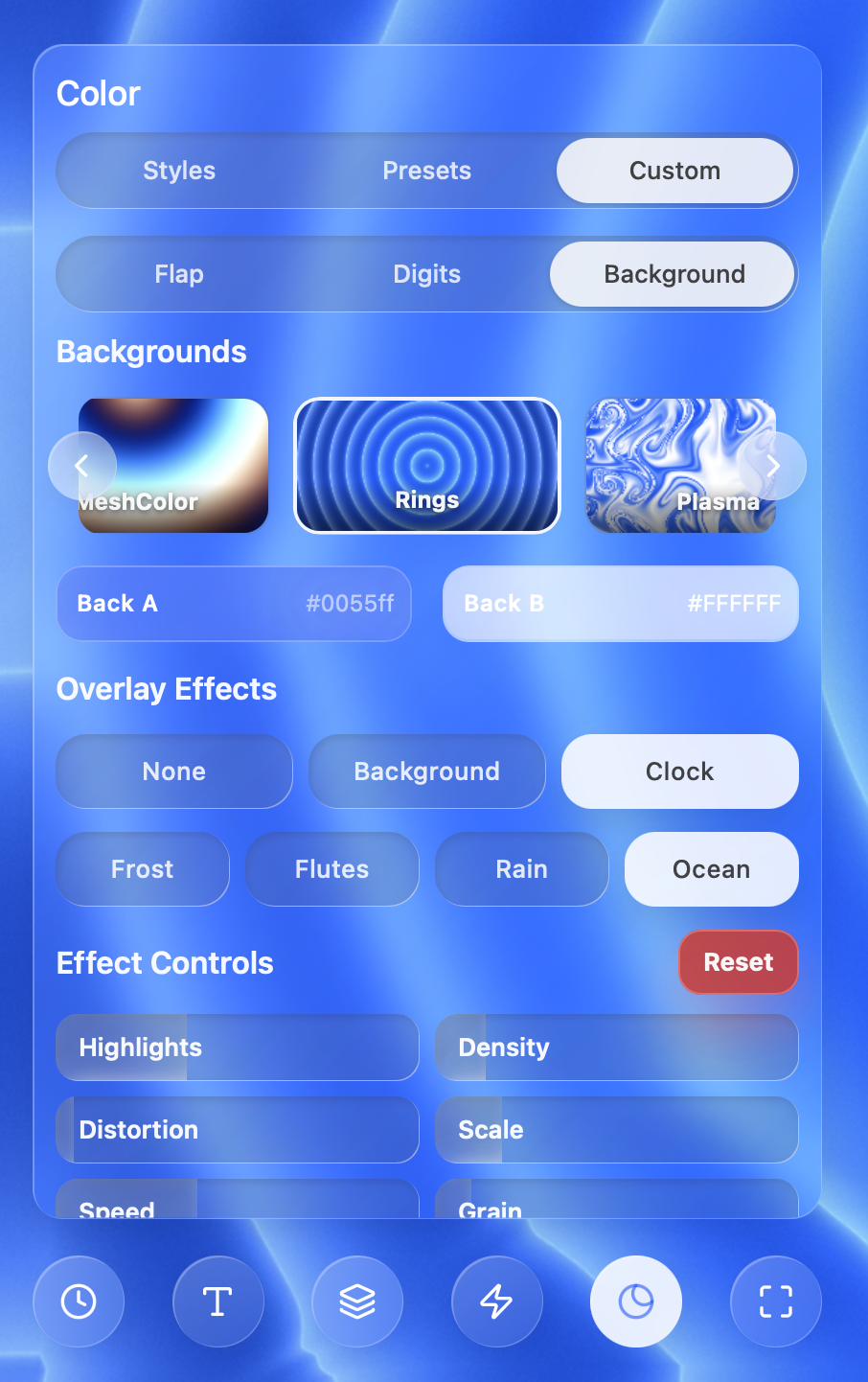
Access overlays through the Layers menu to add depth to your clock face
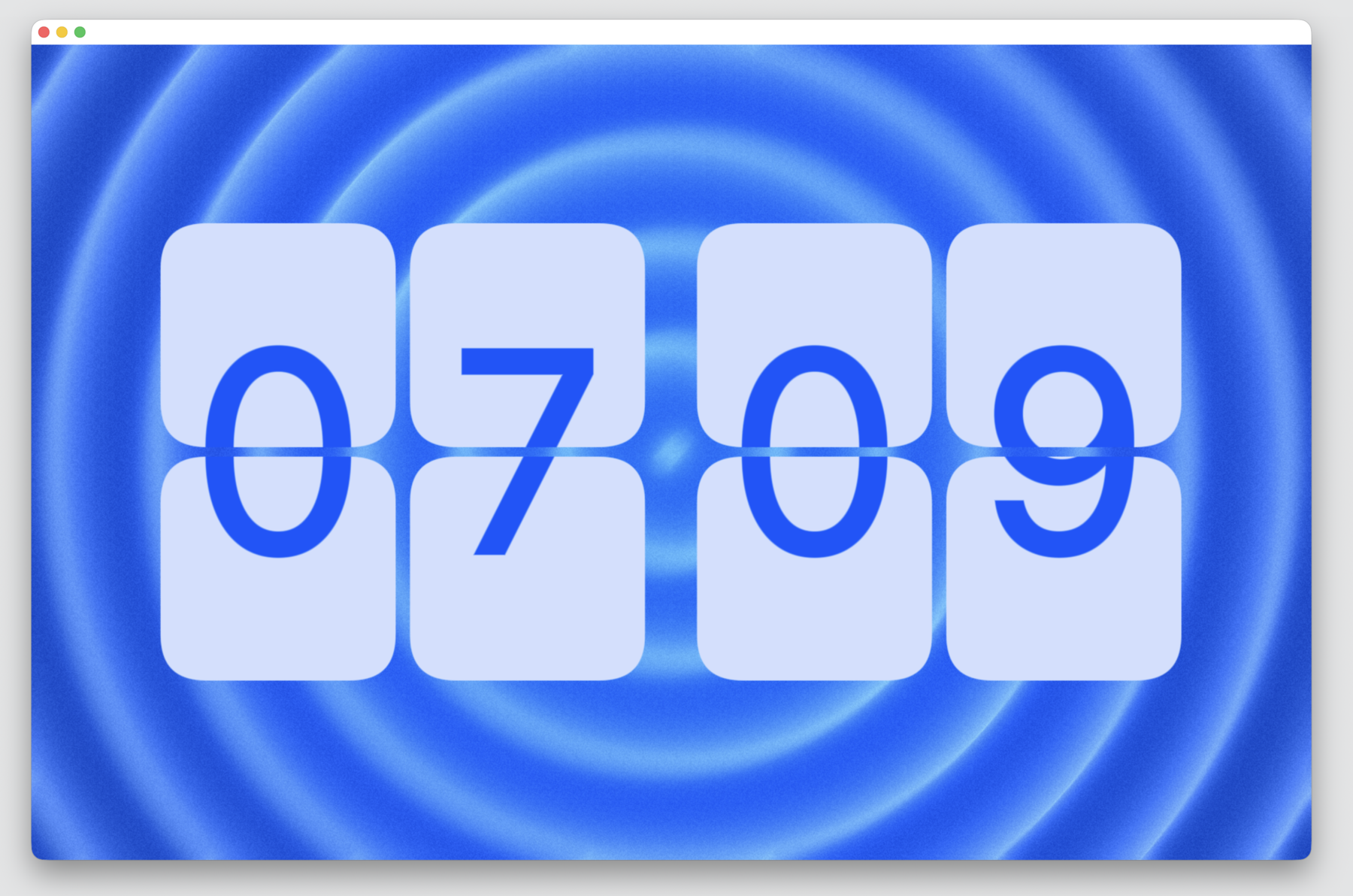
Frost: A frosted noisy effect applied to the background
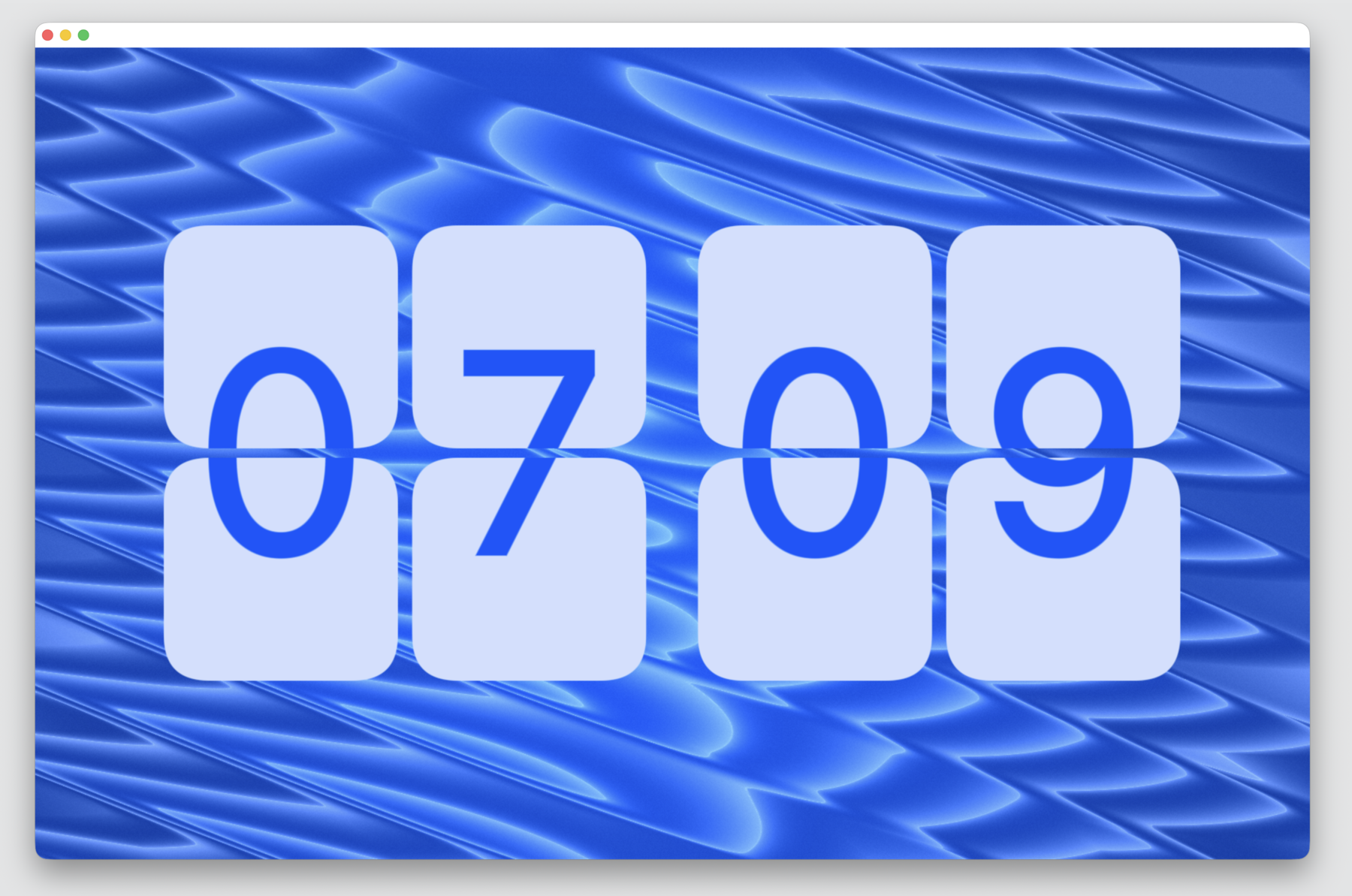
Flutes: Diagonal glass flutes distorting the background
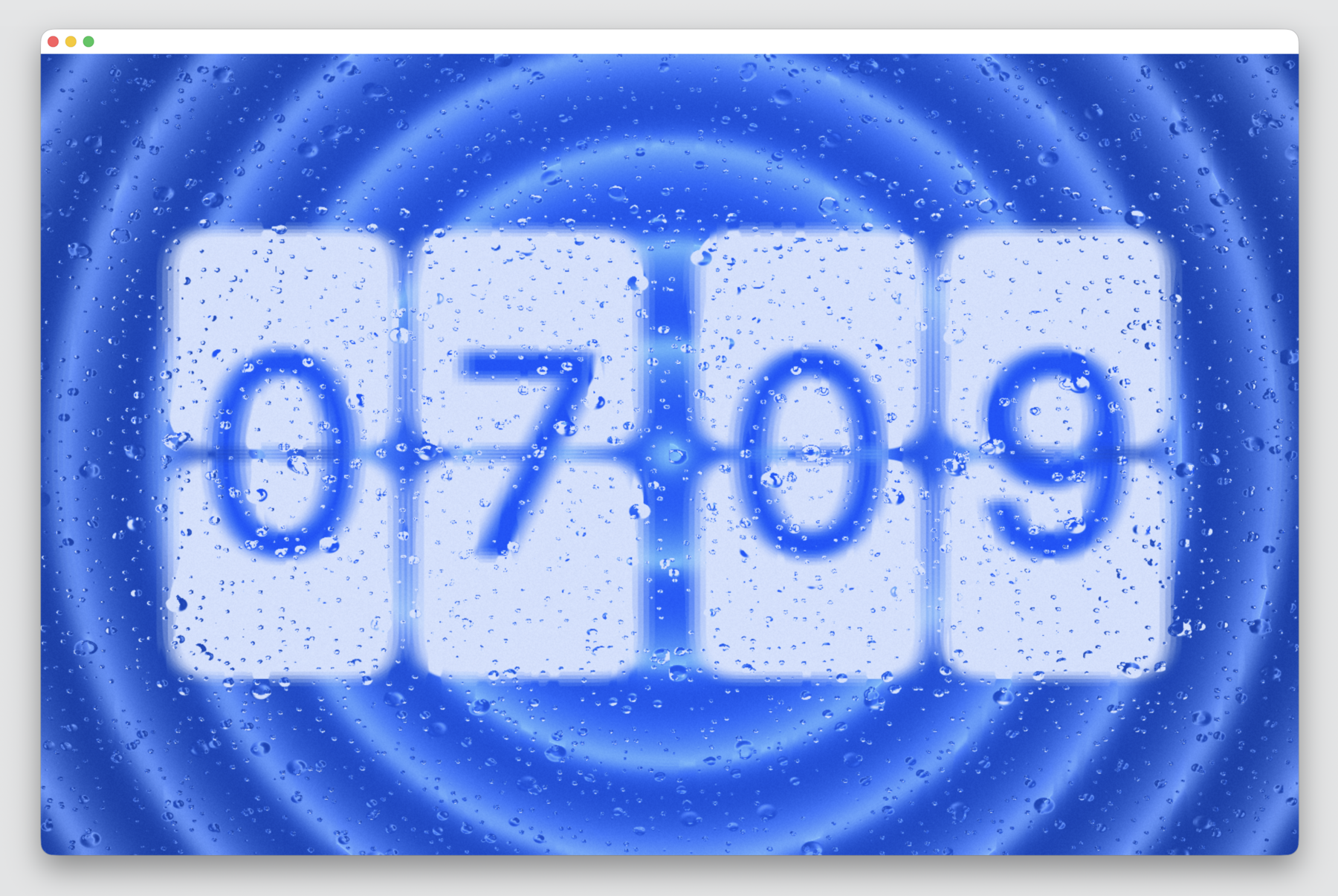
Rain: Animated raindrops that run down your screen applied to the background & clock
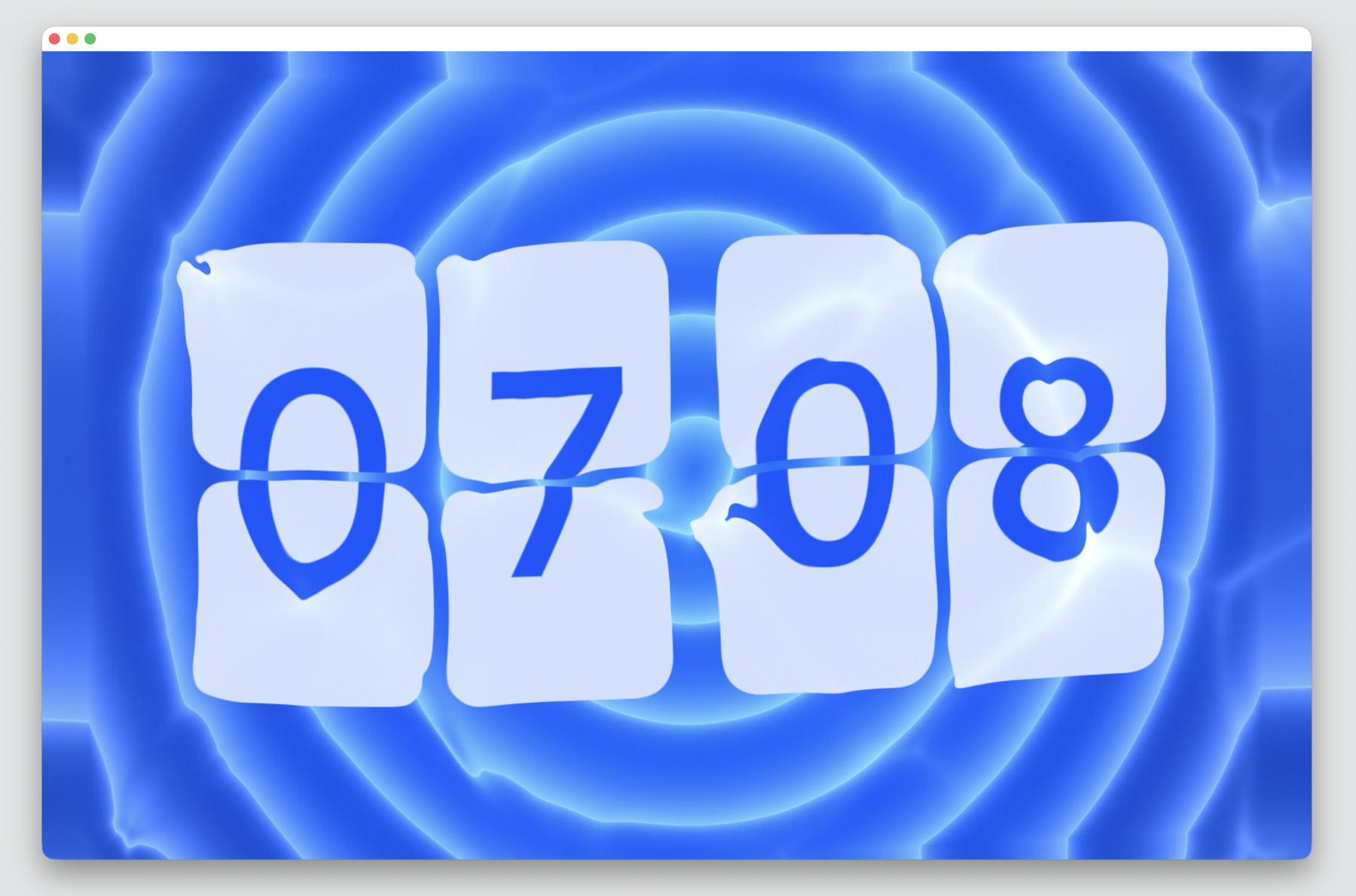
Ocean: Waves moving over your screen applied to the background & clock
Dynamic Application
In the settings menu, you can choose where the overlay applies:
- Background: Applies only to the area behind the clock
- Clock: Applies to background + flaps and digits