
Pomodoro Guide
Complete guide on how to use FlipCloc Pomodoro
Quick Guide
- 1
FlipCloc can be used as a Pomodoro Timer or a standard timer
- 2
Switch to Pomo mode to start a Pomodoro session
- 3
Use the standard 25, 5, 15 Pomodoro values or enter your own custom values
- 4
Zero out the short and long break values to use it as a standard countdown timer
- 5
Paid users can save custom pomodoro values to their presets for quick access
Productivity & Focus
The Pomodoro technique is a time management method that uses a timer to break work into intervals, traditionally 25 minutes in length, separated by short breaks. FlipCloc makes this aesthetic and effortless
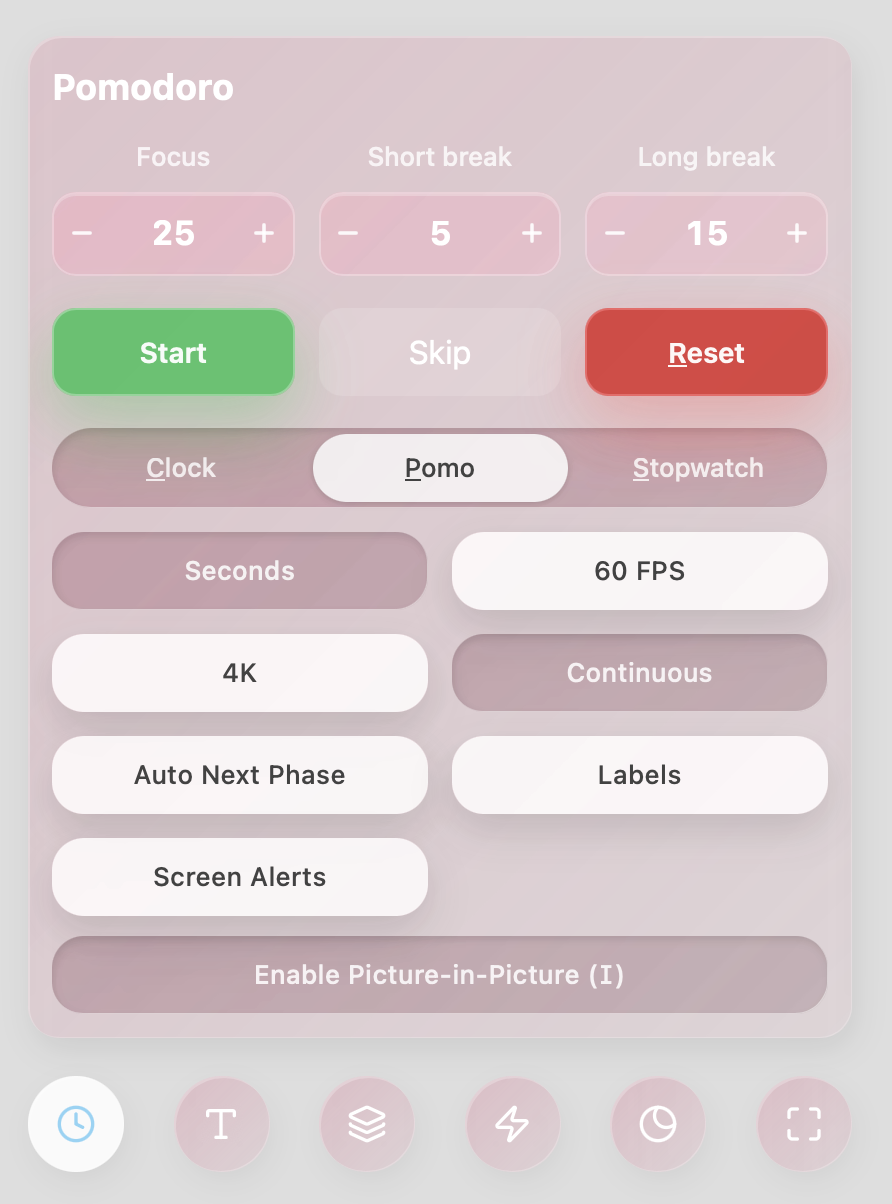
Explore the rich customization options and settings in FlipCloc
How to Configure
FlipCloc offers a suite of settings to tailor your focus experience. Fine tune how you like your Pomodoro timer
- Toggling Modes: Use the first slider to switch into Pomodoro mode
- Custom Intervals: Use the standard 25, 5, 15 Pomodoro values or set your own work and break durations by tapping the + and - icons or typing them in
- Control the flow: Use the Start, Stop (Spacebar), Skip Phase (N), or Reset (R) buttons to manage your session
- Seconds: Toggle seconds to show or hide the seconds. Disabling seconds also unlocks the Continuous setting explained below
- 60 FPS: Control the refresh rate of the clock
- 4K: Toggle the resolution at which FlipCloc runs
- Continuous: This setting only appears when seconds are disabled. This controls whether the background animates continuously or only for a short burst during every minute flip
- Auto Next Phase: Choose whether to automatically start the next session or wait for your cue
- Labels: Toggle to show or hide the details of your current Pomodoro session
- Pomo Alerts: Lighten the screen slowly as a Pomodoro phase is about to end
- Pomo Flashes: Flash the screen to grab your attention when a Pomodoro phase has ended and requires your input to start a new session. Pomo Flashes work only when Auto Next Phase is disabled
- Picture-in-Picture: Use the Enable Picture-in-Picture button (or press I) to float a small version of FlipCloc over other applications
Pro Tip: Underlined letters (like Clock or Pomo) or letters in brackets (like (I) for Picture-in-Picture) indicate keyboard shortcuts. You can trigger these actions directly from your keyboard for lightning-fast control. Check out the full shortcut guide for a complete list
Use Cases
- Deep Work: Stay focused on complex tasks like coding or designing for 25-minute sprints
- Study Sessions: Use timed intervals to maintain high information retention and avoid burnout
- Writing: Break down long-form content projects into manageable, productive chunks
Presets & Syncing
All pomodoro settings can be saved to your custom presets after purchasing a plan. Your settings are saved to your profile and automatically synced across all your devices, so your favorite pomodoro follows you everywhere