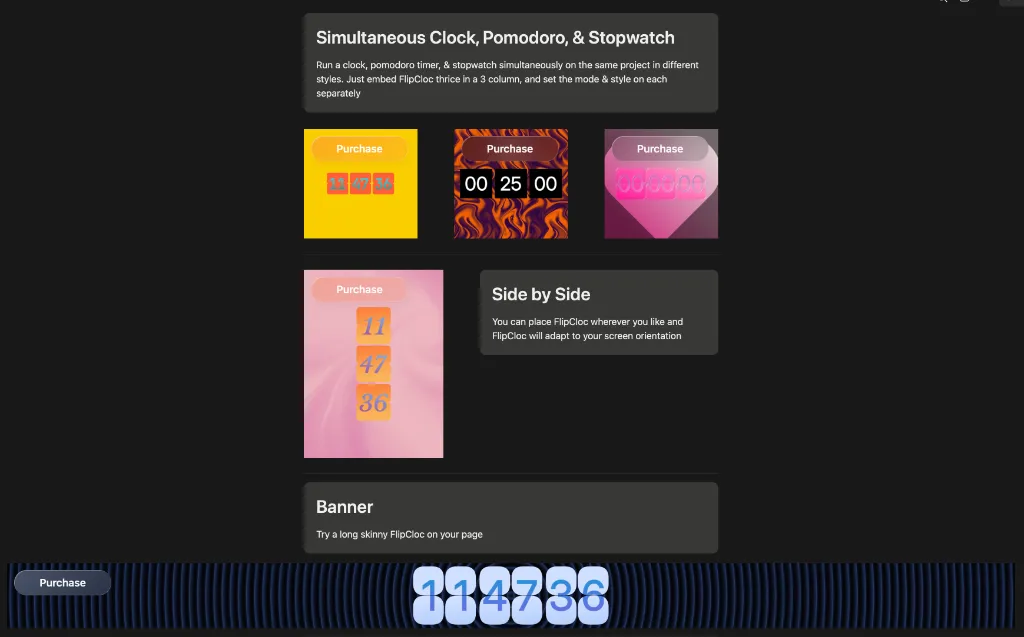
Notion Embed Guide
Complete guide on how to use FlipCloc Notion Embed
Quick Guide
- 1
Type /embed in any Notion page
- 2
Paste https://flipcloc.com into the input field
- 3
Resize the block to your desired dimensions
- 4
Customize all settings directly within Notion
Supercharge your Notion Workspace
Notion is more than just a note-taking app; it's a personalized workstation. Adding FlipCloc to your dashboard not only adds aesthetic value but also helps you keep track of your most valuable resource: time
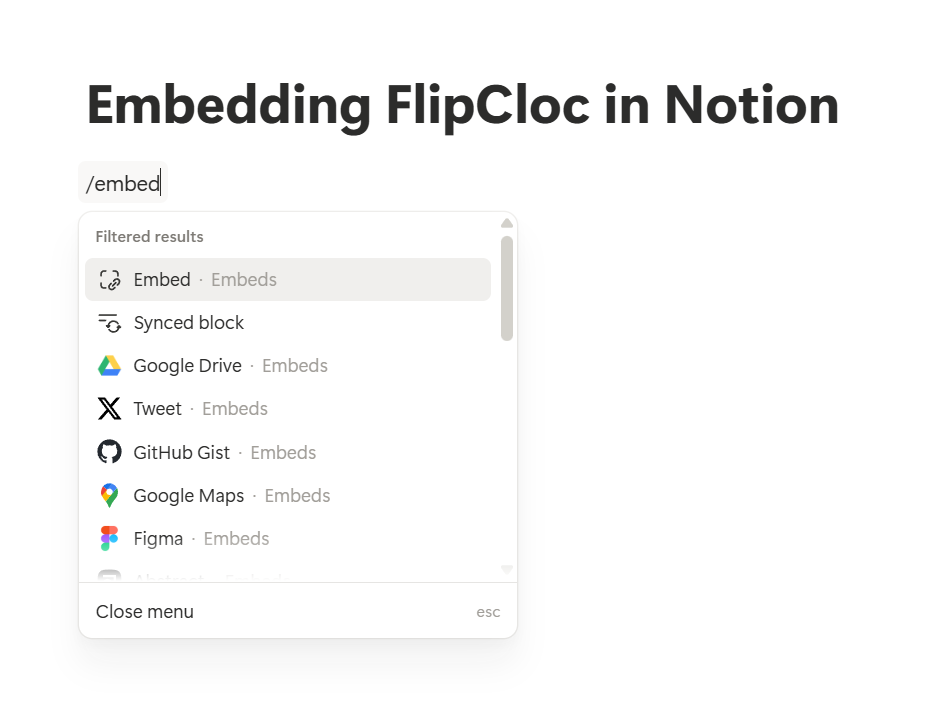
1. Type /embed on any Notion page to bring up the embed block
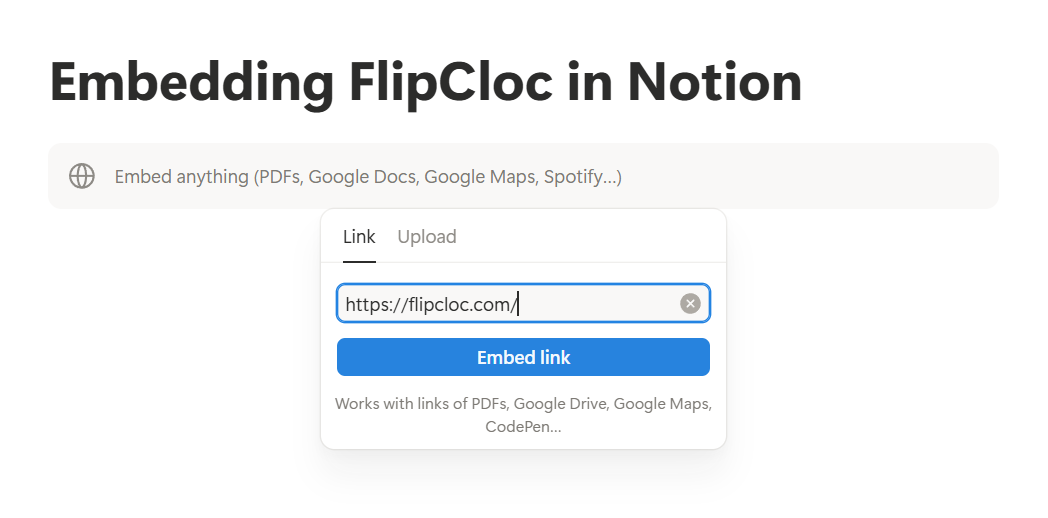
2. Paste https://flipcloc.com and click Embed Link
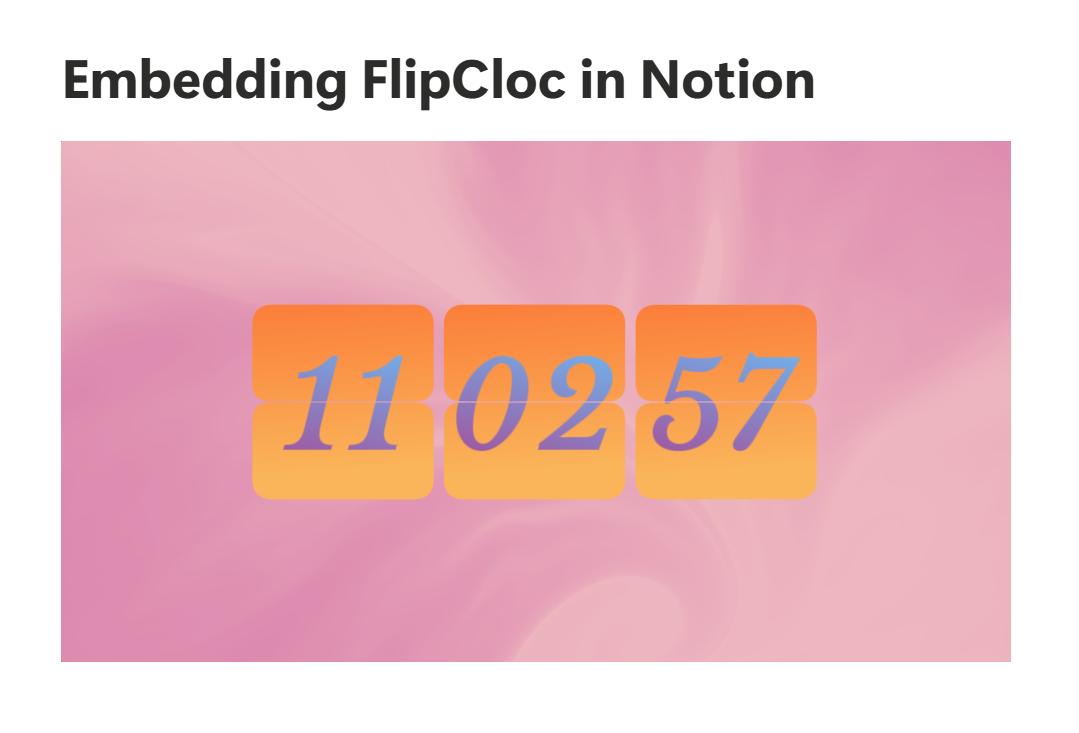
3. Resize the block to fit your layout. FlipCloc adapts beautifully to any column width
Why Use Notion Embeds?
FlipCloc provides lightweight, fully customizable embeds designed to match your personal aesthetic. Boost your productivity with a built-in clock, Pomodoro timer, countdown timer, and stopwatch. You can even run multiple widgets side-by-side on the same Notion page—each customized in its own unique style.
View a live Notion page with FlipCloc embeds ↗