
Presets Guide
Complete guide on how to use FlipCloc Presets
Quick Guide
- 1
Save your favorite style combinations into 5 slots
- 2
Easily switch between presets via keyboard or UI
- 3
Shortcut: Press numbers 1 to 5 to quickly load your preset
Save Your Styles
Once you've perfectly tuned your fonts, animations, and backgrounds, you don't want to lose them. Presets allow you to save your custom configurations into specific slots for instant access. Purchase a FlipCloc web or desktop license to get access to presets and sync them across all your devices
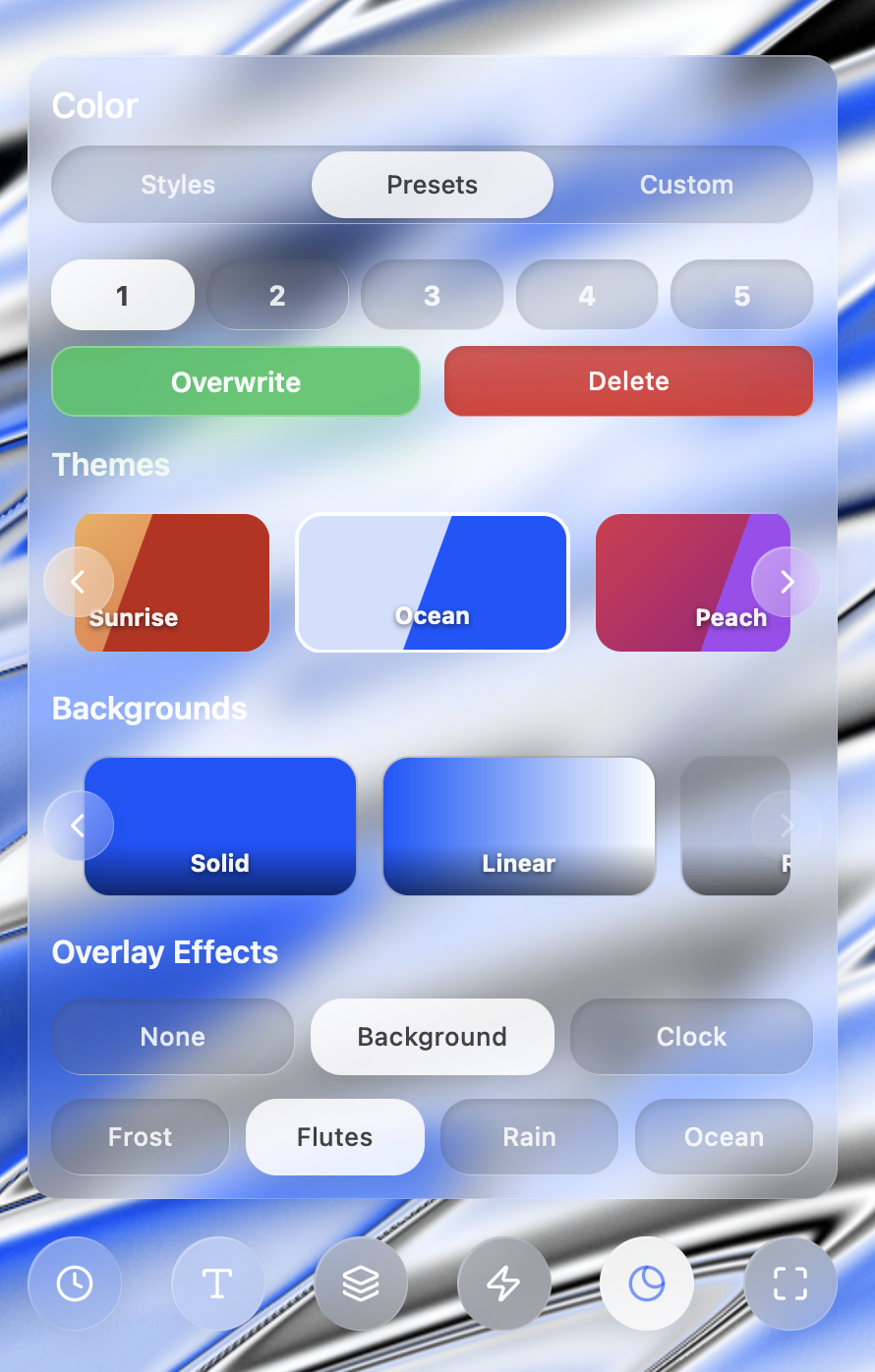
Save your favorite combinations of fonts, colors, and animations to preset slots
Mastering the Preset Menu
The Presets menu is your hub for switching between different moods and setups. Here is everything you can do:
- Plus button (+): When you first sign into FlipCloc you will have no presets, tap the plus icon to select a preset slot. Tweak the settings as you like, or start from a style and click Overwrite to update that slot with your new look
- Preset Slots (1-5): You have five dedicated slots to store your custom designs. You can switch between them by tapping the numbers or using the 1-5 keys on your keyboard for instant changes
- Overwrite: Found a better color for your favorite setup? Select the preset slot, tweak your settings, and click Overwrite to update that slot with your new look
- Delete: Want to start fresh? Click Delete to delete a preset slot. Tap the plus icon to start with a new style after deleting
Themes, Backgrounds & Effects
Beyond your personal presets, FlipCloc offers a vast library of "ready-to-use" aesthetics:
- Themes: Curated color palettes like Sunrise, Ocean, and Peach that instantly change your clock's vibe. Themes store colors only
- Backgrounds: Choose from a wide collection of ever growing backgrounds to set the stage for your clock
- Overlay Effects: Add a layer of depth with effects like Frost, Rain, or Flutes. You can choose to apply these to just the background or the entire clock face
Specific Screensaver Presets
For those using the FlipCloc desktop app, you can choose a specific preset to used as your system screensaver. This ensures that when you step away from your computer, FlipCloc launches with your preferred passive aesthetic
Learn how to set up Windows Screensaver → Learn how to set up Mac Screensaver →