
Animations Guide
Complete guide on how to use FlipCloc Animations
Quick Guide
- 1
Adjust the style of your flipping motion
- 2
Add a bounce, perspective to the flaps
- 3
Decide if the flap should bounce before coming to rest
- 4
Add a subtle motion to the flap behind when animating the flap in front
Control the Flip Motion
FlipCloc allows you to customize the flipping motion as you like. Flip sounds also react to the changes in flipping animation
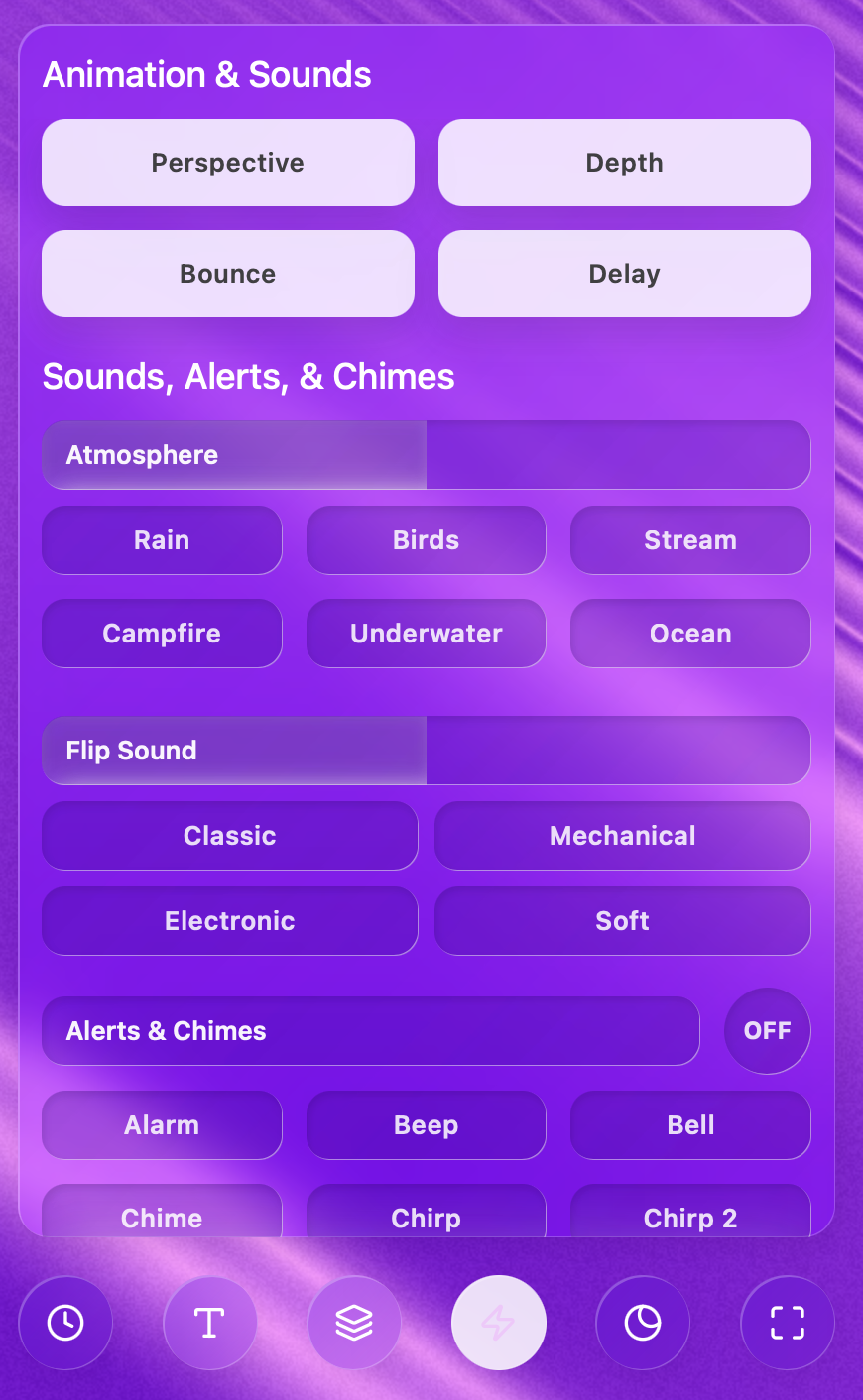
Fine-tune the physics of every flip, from 3D perspective to mechanical bounce
3D Geometry
- Perspective: When Perspective is enabled the flaps show a perspective effect when animating. This amount is tied to the gap between digits
- Depth: Depth adds a susblt motion to the flaps behind the currently animating flaps. The top flap moves into place and the bottom flap recedes from the impact of the new flap coming and resting on it
Momentum & Timing
- Bounce: Controls if the flap should bounce before coming to rest after animating. Bounce also adds a small bounce sound
- Delay: Sync or stagger flip animations. A slight delay creates a beautiful cascading effect across the Hours, Minutes, and Seconds. In combination with the visual effect, this has an aural effect creating a beautful tactile experience on time flips
Pro Tip: Use
Animations with Sounds to get an idea of the time passing without even looking
at the clock. Single flap flips indicate a second change. Multiple flaps flipping indicates a minute or hour change
depending on how many flaps you hear