
Flaps Guide
Complete guide on how to use FlipCloc Flaps
Quick Guide
- 1
Adjust Clock Scale to your preference
- 2
Choose if you'd like a single or separate flap for HH MM and SS
- 3
Choose your text size, offset, & thickness
- 4
Fine tune the position of the clock and the gaps between the flaps
- 5
Set the shape of the flap
Customize your Clock
The "Flaps" tab allows you to customize FlipCloc to your liking by adjusting the size, position, shape, and spacing of the Flip Clock
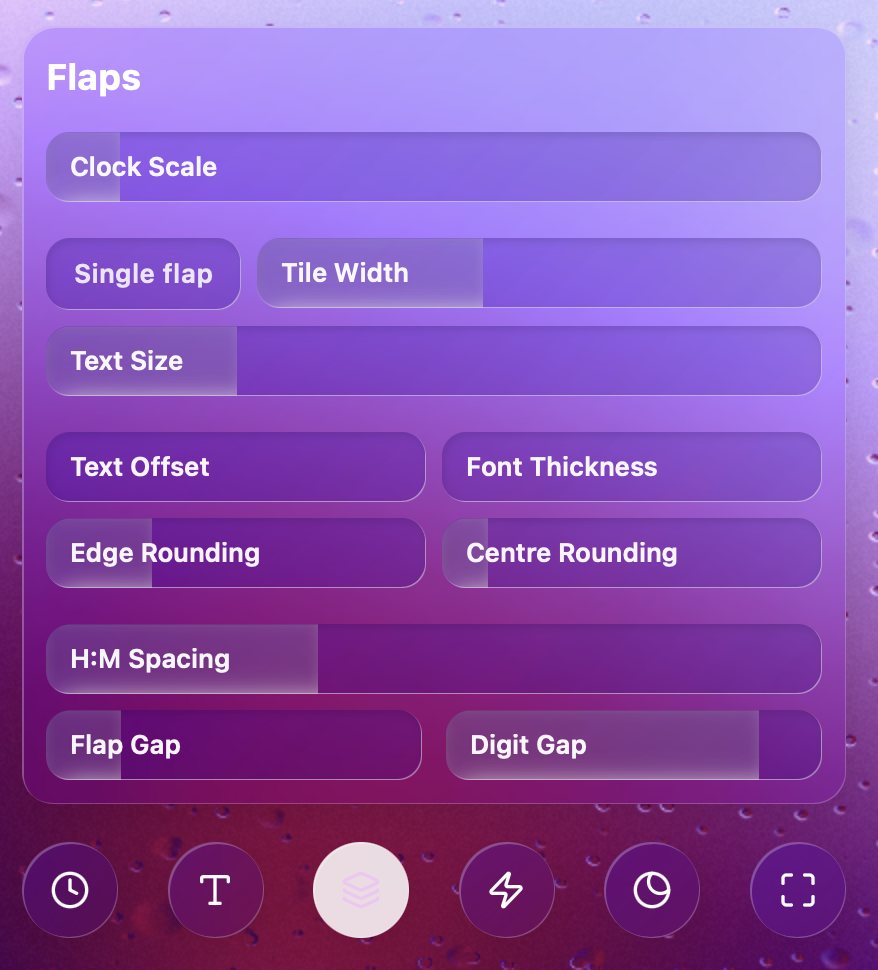
Customize the geometry, layout, and rounding of your flaps
Scaling & Sizing
Fine-tune the size and proportions of your clock digits:
- Clock Scale: Zoom the entire clock in or out to fit your screen resolution or window size
- Tile Width: Adjust the width of the individual digit flaps
- Text Size: Independently control how large the digits appear on the flaps
Layout & Spacing
Fine-tune the distribution of your clock across the UI:
- Digit Gap: The horizontal space between individual numbers
- H:M:S Spacing: The gap between the Hours, Minutes, and Seconds groups
- Flap Gap: The vertical spacing between the top and bottom flap
Rounding & Corners
Control the "softness" of your clock:
- Edge Rounding: Softens the outer corners of the flaps
- Centre Rounding: Softens the central corners where the flaps hinge
Pro Tip: Removing all rounding and setting
Digit Gap to zero creates a "Split-Flap" board
look, reminiscent of old airport display boards