
PIP Mode Guide
Complete guide on how to use FlipCloc PIP Mode
Quick Guide
- 1
Open clock settings, first menu item, scroll down
- 2
Select 'Enable Picture-in-Picture'
- 3
Or use the (I) keyboard shortcut to toggle Picture-in-Picture instantly
- 4
Keep FlipCloc visible on top of other applications while you work
- 5
Resize and move the PiP window to any corner of your screen
Multitask with Time
Picture-in-Picture (PiP) mode allows you to float a small, always-on-top version of FlipCloc while you focus on other applications. Whether you're coding, writing, or watching a video, your favorite flip clock can stay right in the corner of your screen
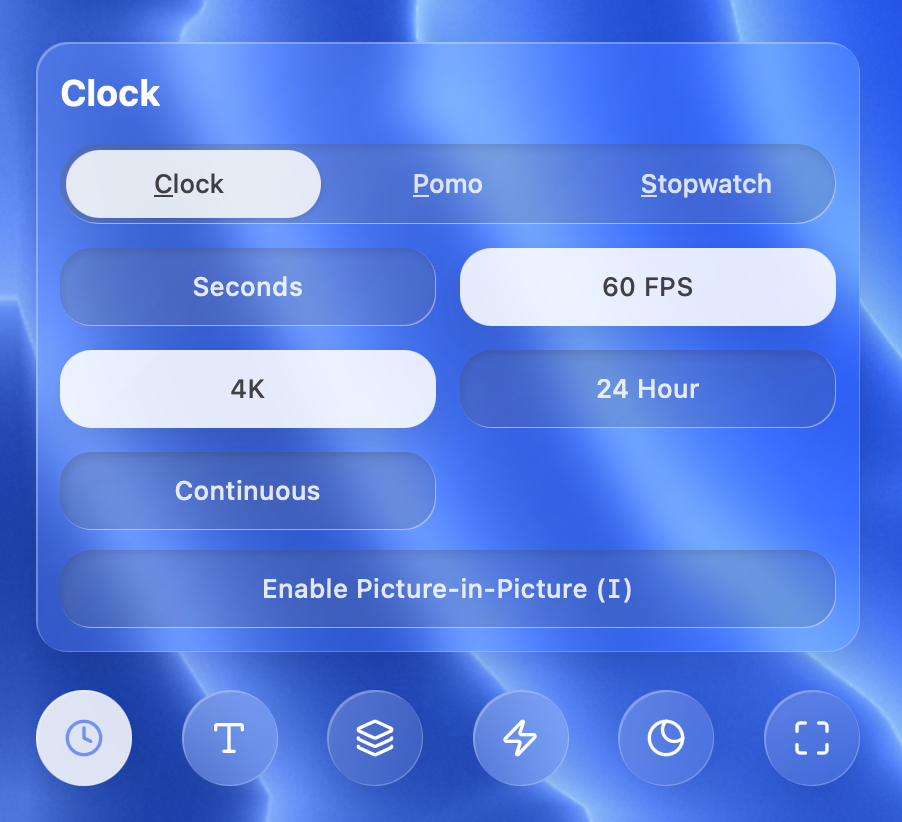
The "Enable Picture-in-Picture" button is located at the bottom of the clock settings menu
How to Trigger PiP
There are two quick ways to enter Picture-in-Picture mode:
- UI Button: Open the clock settings (first icon) in the menu and click the Enable Picture-in-Picture (I) button at the bottom
- Keyboard Shortcut: Simply press the I key on your keyboard to instantly toggle the PiP window
Pro Tip: Once in PiP mode, you can resize the window by dragging its edges and reposition it to any corner of your screen. It will stay on top of other windows until you close it or click the "Back to tab" button
Browser Compatibility
Picture-in-Picture has been tested and works properly on Google Chrome and Microsoft Edge. It may or may not be available on other desktop browsers and is currently unavailable on mobile browsers
Premium Feature
Picture-in-Picture is a premium feature available on paid plans. You can try PIP mode twice before it automatically closes and asks you to purchase a license if you'd like to continue using PIP mode