
Windows Screensaver Guide
Complete guide on how to use FlipCloc Windows Screensaver
Quick Guide
- 1
Purchase the Windows License to get access to the FlipCloc.scr file
- 2
Right click and install the .scr file
- 3
Create a style you like using the web, desktop app, or windows screensaver settings and save as a preset
- 4
Tap the set as screensaver on your desktop app or Windows screensaver settings
- 5
Your screensaver is ready to go!
The Ultimate Passive Aesthetic for Windows
Transform your Windows PC into a functional piece of art when it's not in use. FlipCloc brings a gorgeous flip clock with beautiful, tactile, mechanical flip animations to your screen while being fully customizable to match your personal workspace style, mood, or aesthetic
Installation Instructions
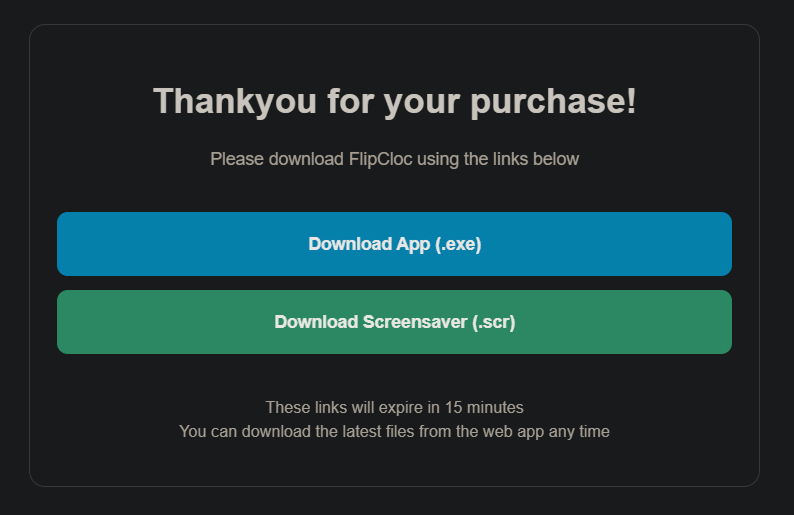
- Purchase: Get a Windows Screensaver license from the website
- Download: You will be emailed the Screensaver (.scr) file immediately after purchase or you can get
it from download page
- Install: Right click the downloaded
FlipCloc.scrfile and select "Install"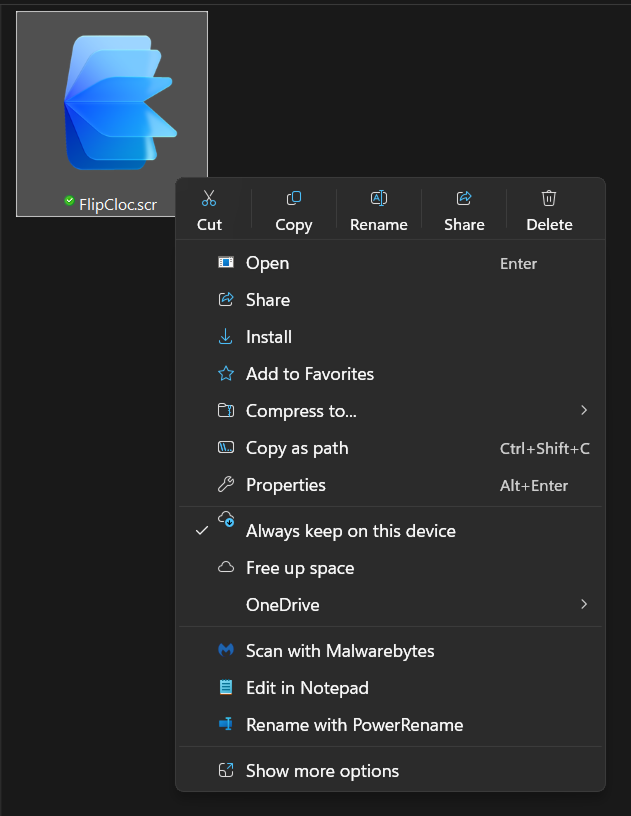
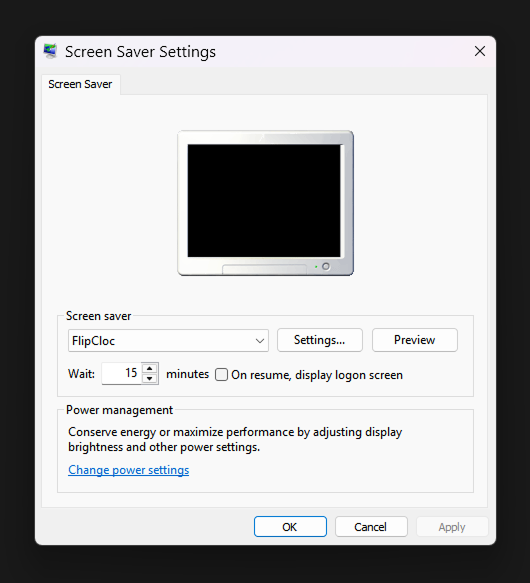
- Configure: Click Settings in Windows Screensaver settings or open the FlipCloc app if owned
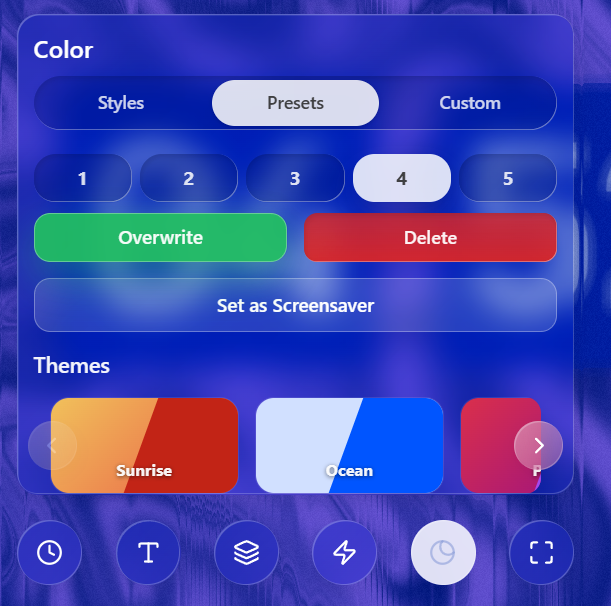
- Select a preset slot or click the plus icon to create a new preset
- Pick an existing style or create your own
- Click overwrite to save your custom clock style to the selected slot
- Set as Screensaver: Click this button to apply your selected preset as the screensaver
- Preview: Click preview in Windows Screensaver settings to preview the screensaver with your selected style
- Launch: FlipCloc screensaver will launch with your saved style once your computer is idle and the set wait time has passed
Uninstalling on Windows
If you would like to remove FlipCloc from your computer, simply delete the FlipCloc.scr file from your
computer. FlipCloc is light and portable, and leaves no unwanted background processes or traces
Looking for the Mac version? Check out our Mac Screensaver Guide