
Mac Screensaver Guide
Complete guide on how to use FlipCloc Mac Screensaver
Quick Guide
- 1
Get FlipCloc from the Mac App Store and select Screensaver on launch (or unlock via in-app purchase)
- 2
Open macOS System Settings and navigate to Screen Saver in the sidebar
- 3
Select FlipCloc from your list of available screensavers
- 4
Customize or choose a style in the FlipCloc app and set it as your screensaver
- 5
Set your idle timer and enjoy your aesthetic flip clock screensaver!
A gorgeous, fully customizable flip clock screensaver for MacOS
Transform your Mac's idle display into a stunning flip clock whenever you step away. FlipCloc for Mac is the best flip clock and lets you customize every single aspect of the clock. FlipCloc combines buttery smooth 60fps animations, customizable colors, elegant typography, ambient soundscapes, overlay effects, and so much more to create a gorgeous MacOS screensaver experience
Step by Step Setup Guide
- Download on the Mac App Store: Install FlipCloc from the Mac App Store
- Launch & Select Screensaver: On first launch of the app, you'll be presented with a screen to
select between App or Screensaver. Select Screensaver (or unlock both App + Screensaver by selecting
either and purchasing the other via a one time in app purchase later)
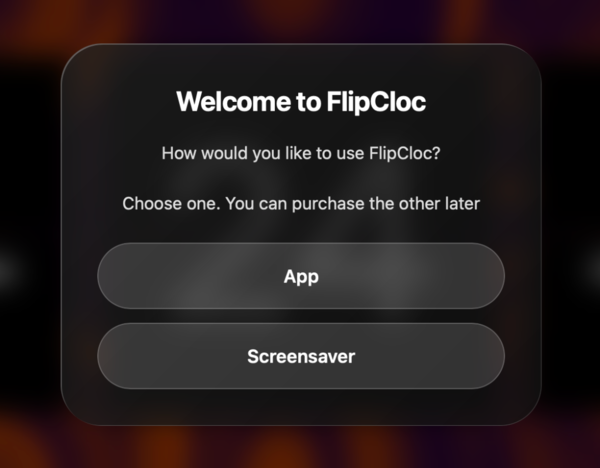
- Install FlipCloc Screensaver: After selecting screensaver in the previous step, the app will automatically
try to install the FlipCloc screensaver. If the MacOS settings don't appear, open the app, navigate to Colors > Presets,
and click Install Screensaver
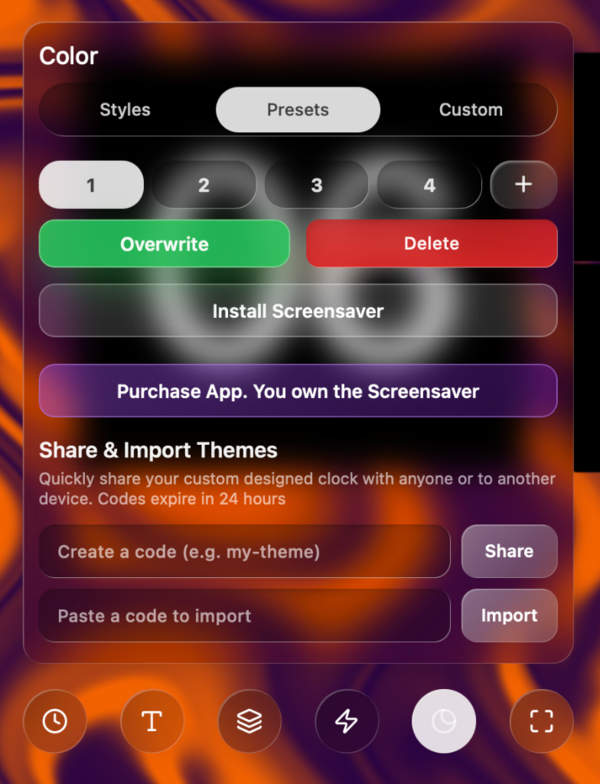
- Confirm Installation: A MacOS prompt will appear asking to install the screen saver. Choose either
option and click Install
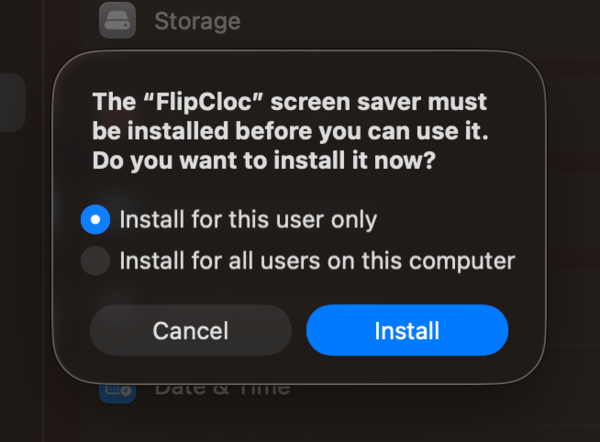
- Select FlipCloc: MacOS Screensaver Settings will open automatically and FlipCloc should be set as
the default screensaver now. If not, scroll to the bottom and all the way to the right under Other to find
FlipCloc and set it as your active screensaver
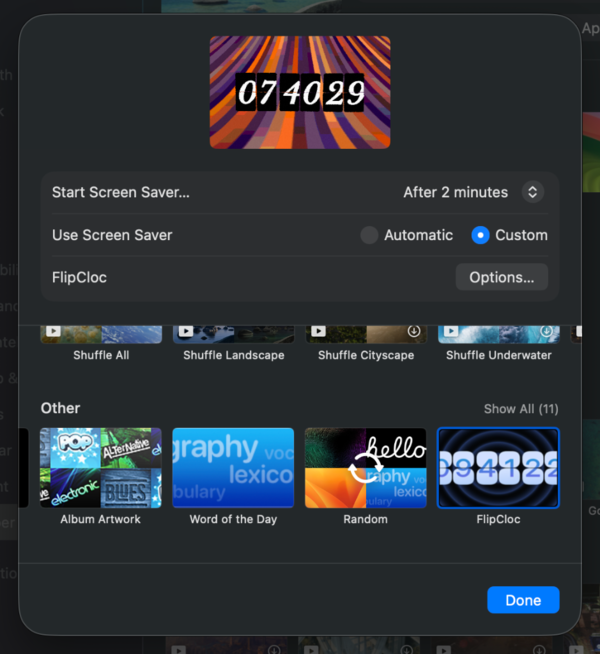
- Allow Sync: Click on Options and click Allow Access so that the
FlipCloc screensaver can access the FlipCloc app folder location to sync styles. Tap the Allow Access button and click
done without navigating away from the pre selected folder. The Allow Access button will change to a green Access Granted
once permission is granted
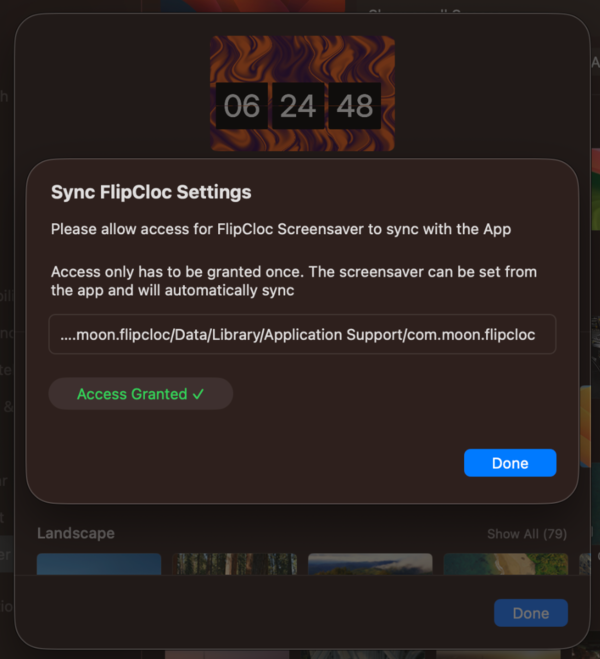
- Preview: Now FlipCloc screensaver is installed with the necessary permissions. The thumbnail shows your selected style and you can tap it to open a full screen preview
- Customize Your Screensaver: Open the FlipCloc app and customize the clock to your
preference and save your changes to a preset slot. Click Set as Screensaver to set your desired preset
as the screensaver
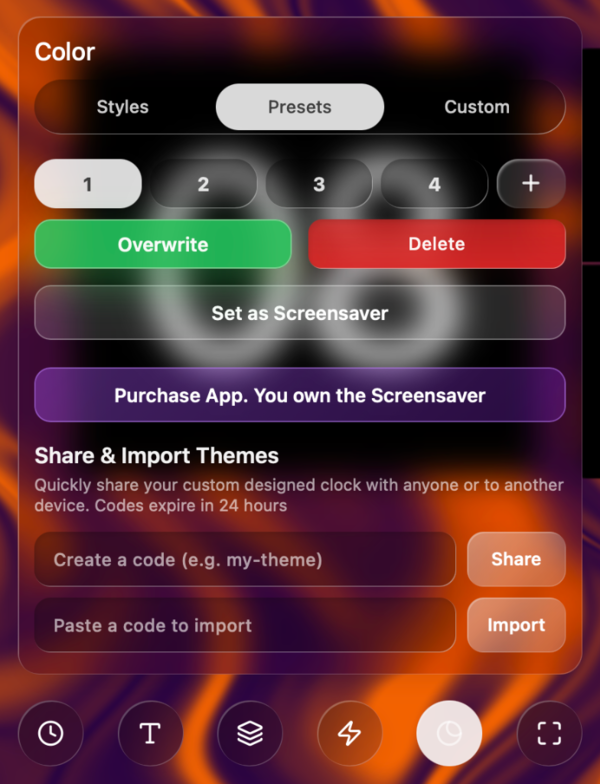
- Screensaver Launch: Set your inactivity timer in MacOS screensaver settings and FlipCloc will smoothly launch with your saved style when your Mac is idle
MacOS manages screensavers per display and desktop Space. If you use multiple monitors or Spaces (virtual desktops), make sure to select FlipCloc as your screensaver for each active display in System Settings
FlipCloc intelligently shows the time only on the primary monitor and will show the background on non primary monitors in a multi monitor setup
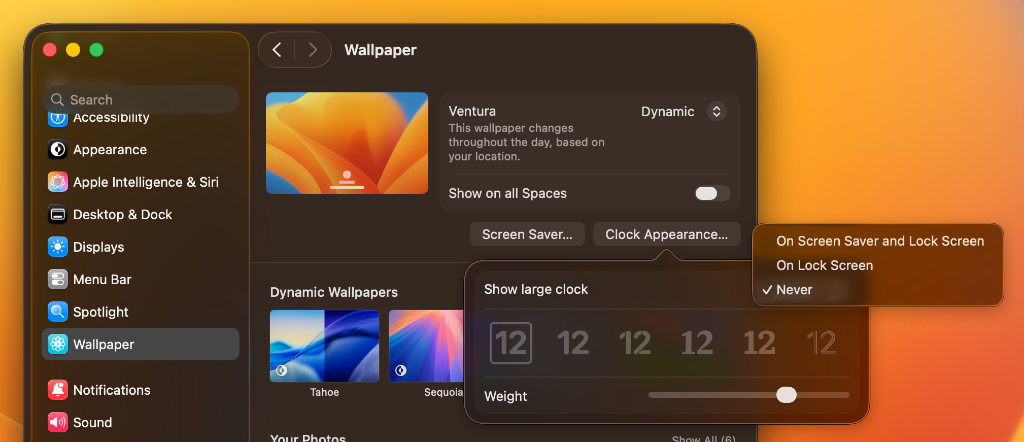
In MacOS System Settings > Wallpaper, click Clock Appearance... and set "Show large clock" to Never (or On Lock Screen). This hides the default MacOS clock so only FlipCloc displays the time on your Mac screen
The FlipCloc app is used to customize and configure your screensaver. Your screensaver license gives you access to the FlipCloc app for 15 minutes per session
The app automatically closes when the 15 minute session ends. Before it closes, you’ll have the option to save your changes. You can reopen the app at any time to continue customizing your screensaver
For sessions longer than 15 minutes, you can purchase the FlipCloc app license as a one time in app purchase
Update FlipCloc Screensaver
FlipCloc auto updates from the Mac App Store. You need to open the app and manually tap the Update Screensaver button to install the latest screensaver version. The update button will show whenever a screensaver update is available
Uninstall FlipCloc or Switch Screensaver
To switch to a different screensaver at any time, simply select another screensaver in MacOS System Settings. If you wish to completely remove FlipCloc, open MacOS screensaver settings, right click FlipCloc and tap Delete FlipCloc
Looking for Windows? Check out our Windows Screensaver Guide